Five steps to your first mobile live stream
- Choose one activity, place or idea you can explain clearly.
- Test your camera, voice, connection and battery where you will film.
- Remove private details from the frame and decide when to stop.
- Open Pyjam, review the available creator options and start only when ready.
- End the broadcast deliberately, check its status and note one improvement.
You can rehearse with your phone's ordinary camera before broadcasting. A local recording lets you review framing and speech without assuming the streaming app has a private practice mode. Preparation does not guarantee viewers, but it gives your first viewer something understandable to join.
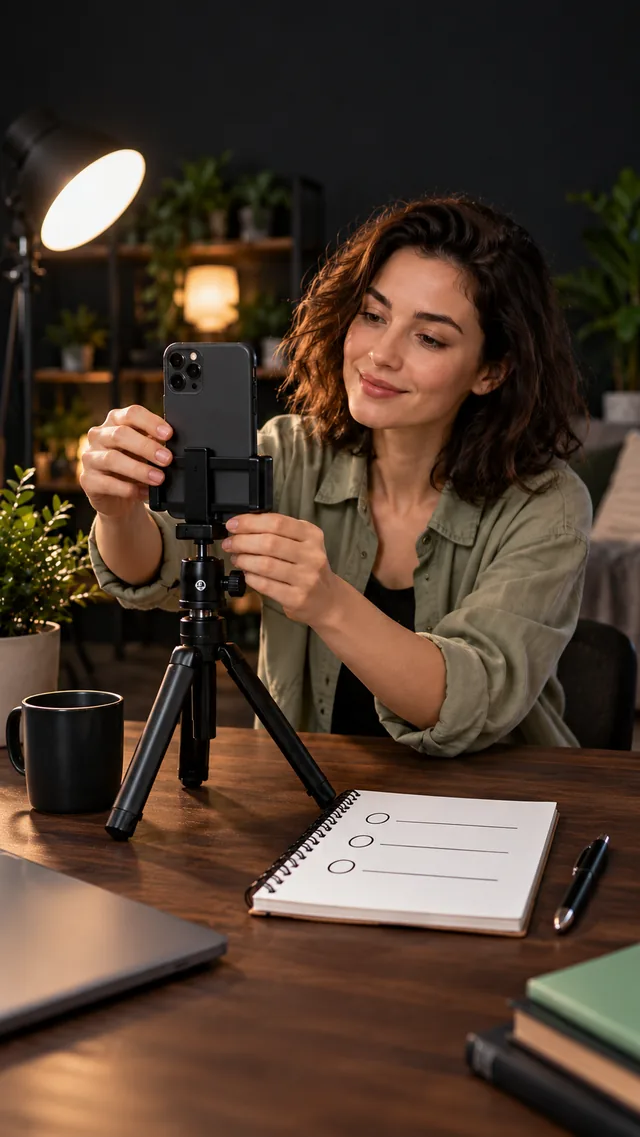
Choose a subject you can actually show
Complete this sentence: “In this stream, I will show…” A sketch, a short walk or one stage of a recipe is easier to follow than an undefined promise to talk about everything. Plan an introduction, two or three points and a closing thought. Put the objects you need within reach.
For an outdoor IRL stream, choose a manageable route and check where you can safely stop. Watch your surroundings rather than the phone while moving. A useful first attempt can be short; choose a duration that fits your battery, connection and comfort.
Check your phone where you will be filming
| Check | What to try |
|---|---|
| Picture | Clean the lens, steady the phone and check the background and lighting. |
| Sound | Record a short sentence and listen for wind, music or distracting noise. |
| Connection | Test upload stability at the filming spot; fast browsing alone is not enough. |
| Power | Charge the phone and avoid a location where it overheats. |
| Interruptions | Review notifications and incoming calls before you begin. |
Start with the equipment you already have. Add a microphone or support only to solve a problem you noticed in a test. Device and accessory compatibility varies; check the actual app and phone rather than relying on another platform's settings.
Protect your privacy before going live
Look for documents, address labels, screens and reflections in the shot. Think about what a camera turn could reveal. Avoid showing other people's private conversations, personal information or faces without appropriate permission. Do not assume that a location marker hides your precise address.
Review camera and microphone requests when preparing to broadcast. Check the current terms and available audience settings before starting. Pyjam content is for ages 12 and over; registration and creating a stream are for ages 13 and over. Opening a guide does not establish eligibility or grant any permissions.
Open Pyjam and prepare your broadcast
Use the main button to open the creator area. Sign in if requested, then review the controls and information shown in your version of Pyjam. Choose a clear subject and check any details the app asks you to provide. Interface labels and available options can differ between devices.
Opening the creator area is preparation, not a public broadcast. Locate the start and stop controls before proceeding. If the next action or visibility is unclear, pause and check before confirming. For a broader introduction, read about the Pyjam live streaming app.
Give viewers context, then finish deliberately
Introduce what you are showing in the first few sentences. Describe details that may be hard to see on a small screen. If chat is available, acknowledge relevant questions without letting messages distract you from a task or your surroundings. You do not need to fill every pause.
When finished, use the app's ending control and verify the broadcast has stopped. Check whether a replay is available and what its status says; do not assume every stream becomes a permanent recording. Note what worked, what sounded unclear and one change for next time.
If the stream will not start or keeps dropping
Check whether you are signed in, whether the app has the permissions it requests and whether the connection is stable. Review any message shown on screen. If the phone is hot or low on power, stop and resolve that before trying again. Do not repeatedly restart a broadcast without understanding the problem.
Requirements vary by service and account. Compare live streaming platforms before transferring another app's instructions to Pyjam. Prefer to observe first? Use the live stream map guide to find public streams and available replays by place.