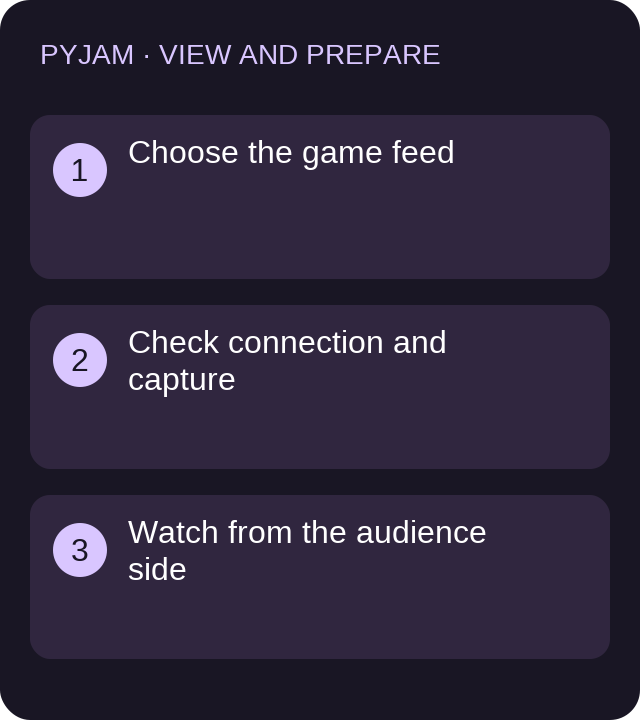
Choose what the viewer should see
Start by deciding whether your session is about a game, an explanation, or a view of a real place. These are different viewing tasks. For a game demonstration, identify the action you want to explain and the part of the picture that needs to remain readable. Prepare a brief introduction so a new viewer understands the purpose without needing your private planning notes. Keep unrelated windows and personal information out of your rehearsal.
Separate the connection from the content
Nimo’s OBS tutorial describes connecting a Nimo account using a stream key, choosing a capture source, and checking the stream through its dashboard. These are separate stages. An account connection does not establish that the selected picture is useful, and a local preview alone does not establish that a remote viewer can follow the broadcast. Keep stream credentials private and follow the current options shown in the official tools. This is a Nimo workflow, not evidence of a Pyjam integration.
Check the audience experience
Nimo’s broadcast-health guidance discusses upload testing and adjusting video settings when playback freezes. Use those ideas as a starting point, then rehearse with the network and device you will actually use. Before inviting an audience, confirm that the picture explains your subject and that spoken instructions are understandable. Write a short viewing invitation that names the subject and gives the correct destination. If you change the destination after rehearsal, check that invitation again.
Choose a destination for the task
If you want to follow a particular Nimo creator, begin with that creator’s own viewing route. If you want to explore a place or a practical activity, open Pyjam and inspect the public videos currently available through its map. Read the selected video’s context and distinguish a live session from a replay. Choose the experience that answers your question; do not assume that accounts, audiences or broadcasts transfer between the services.