Which BIGO LIVE alternative fits your next visit?
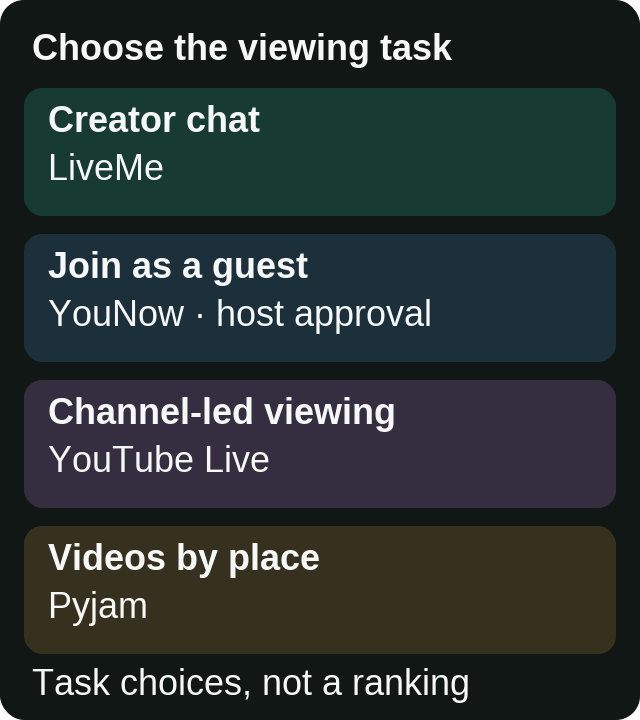
For BIGO LIVE alternatives, start with your viewing goal. Consider LiveMe for creator-led social broadcasts, YouNow if host-approved guest participation matters, YouTube Live for a channel’s live show, and Pyjam for videos connected to places. Check the actual creator, language and viewing route before choosing. These options are a shortlist to inspect, not a ranking or a promise of identical features.
A familiar performer, a conversation you can join and a view of a particular place are different reasons to open a stream. Keep the reason that brought you to BIGO LIVE in mind. A replacement that changes that reason may be interesting, but it may not solve your original problem. If you only need help finding a room, use the BIGO LIVE room-viewing guide before starting a platform comparison.
Compare destinations by the viewing task
BIGO LIVE’s official introduction describes watching or broadcasting live video and chatting. Begin with the part you actually use. A live-room directory, a creator’s channel, a map of videos and a production studio can all appear in a search for alternatives. Only some of those choices are places where you can immediately look for something to watch.
| Option | Check first |
|---|---|
| LiveMe | A creator, the language and chat. |
| YouNow | Viewing versus a host-approved guest request. |
| YouTube Live | The channel, watch page and chat. |
| Pyjam | A place, video context and playback. |
The checklist gives each option a starting question. It does not say that an app offers only that activity, or that a listed feature is available to every account. Shortlist two services for one task and test them on the device you intend to use. Keep a successful viewing result separate from the ability to comment, appear as a guest or start your own broadcast.
LiveMe: inspect a creator-led social broadcast
LiveMe’s homepage describes creator chat, virtual gifts and PK challenges around live shows. That makes it a relevant option to inspect when your interest is the performer and the interaction around a broadcast. Start with an actual show rather than choosing from download totals or a generic app recommendation. Establish what the host is doing and whether you can understand the conversation.
Next, decide which interaction you want. Watching a performance, writing a comment and using an optional support feature are separate choices. A busy room is not automatically a better fit for a quiet viewing session. Try following one complete exchange or a short performance before deciding whether the format suits you. If a comment or recording link behaves unexpectedly, the LiveMe viewing checks provide a more specific starting point than changing platforms immediately.
YouNow: distinguish watching from joining as a guest
YouNow’s guest guide describes a viewer request followed by host acceptance. A viewer can raise a hand and use the guest option, but the host controls admission to the broadcast. This is a useful distinction if your reason for looking beyond BIGO LIVE is to take part on screen. The existence of a guest control does not mean you will be invited into every show.
First inspect a broadcast as a viewer. Check its subject and how the host manages participation. Only prepare a guest appearance if that is what you want and the invitation fits the session. Agree what you would contribute and what the camera should show before requesting admission. Use the YouNow guest-broadcast guide for that preparation. Keep your viewing comparison complete even if you choose not to appear on camera.
YouTube Live: follow the channel and the viewing link
YouTube’s live-stream viewing help distinguishes live streams, Premieres and replays. A Premiere presents a newly released video with a live community experience; it is not the same claim as a camera broadcasting the present moment. After a live stream, a channel may publish a replay or highlights. Check the particular video and its context rather than assuming every past show is available in full.
The same help places Live Chat on YouTube watch pages, not embedded players. If conversation matters, test the watch-page route you would actually use and inspect its chat conditions. For a familiar creator, begin with that creator’s current channel link. If you intend to host later, investigate publishing requirements separately. A channel that is convenient to watch is not evidence that your own account can immediately broadcast from the device you plan to use.
Pyjam: explore videos through places
Choose a place-based viewing route in Pyjam when your question is about a scene, activity or place. Open the app, inspect the public videos currently available and select an item whose subject fits your question. Read its context and establish whether you are looking at a live session or a recording. A point on a map does not guarantee that someone is broadcasting there right now.
For a useful first visit, check more than the arrival screen. Open a video, inspect the picture and sound on your device, and decide whether its language and subject help you. Keep the available selection separate from continuous coverage of a whole city or country. If you mainly want to follow a particular BIGO LIVE creator, find that creator’s own current viewing route first. Opening Pyjam does not import their followers, comments, gifts or saved videos.
Run a two-service, twenty-minute viewing trial
Use the same question for both shortlisted services. The schedule below is a practical worksheet, not a measured claim about how quickly any app will work. If a required step is unavailable, record that result instead of treating it as completed. You can use the platform viewing-trial matrix to keep your notes together.
- Two minutes: define the task. Write one sentence about what you want to watch and why. Choose the device and language you need. Decide whether conversation is essential or optional. This keeps a lively but unrelated room from winning a comparison that was really about finding a particular kind of content.
- Six minutes: inspect the first option. Note how you reached the video, whether you encountered an account prompt and whether playback worked. Describe the subject and any live or recorded label you can verify. If you cannot find a suitable item, record that limited result; it does not prove the entire service has no relevant content.
- Six minutes: inspect the second option. Repeat the same task on the same device. Avoid comparing a saved video on one service with an unavailable live event on another without recording that difference. Keep optional purchases or guest participation separate so the notes still answer your original viewing question.
- Three minutes: compare access and conversation. Read the notes side by side. Did you understand the content? Could you locate the conversation you wanted? Did the shared link open the intended item? Keep unknown requirements marked as unknown rather than giving a service an automatic pass.
- Three minutes: choose the next visit. Keep the route that answered your question, or write down the specific obstacle you still need to resolve. Save the useful viewing link and its context. Choose a longer trial only after this first check gives you a reason to continue.
Use a specific question to interpret the result
Suppose you have a short break and want to explore what a public place looks like. A performer-led social room may be enjoyable without answering that question. Start with the available place-based videos, then check their date, status and explanation. If your next visit is instead about a favourite singer, their own channel or room may be the more useful route. The same person can reasonably choose different services for those two visits.
This is an illustrative decision example, not a report of a comparative platform test. Its purpose is to make your result explainable. “I could open a relevant video and understand its subject” is a stronger note than “this app seems popular.” A service that does not fit one question can still be suitable for a different session.
Check account conditions and optional costs separately
Review the current account rules for your age, country and intended action before committing to a service. An available download, a translated menu and a successful video preview answer different questions. Check the sign-in or subscription conditions shown for the video and conversation you actually want. For optional purchases, read the displayed terms and amount before deciding whether the feature matters to your viewing goal.
Do not use a comparison of viewing destinations as evidence that an encoder, studio or multistreaming tool is included. If you later want to broadcast, check the exact production route and account requirements for that destination. Your audience’s ability to watch and your own ability to publish should both be verified. Keep the successful viewing notes so that a change of production software does not erase what you learned about the audience’s route.
Choose your next action
For another visit to a familiar creator, keep their current channel or room link. For a different kind of interaction, inspect the relevant service’s own controls and help. For discovering public videos through places, open Pyjam and check an available item. Continue watching when its subject and language fit your interests; stop and choose another item when they do not.
If showing something yourself becomes the goal, use the first-stream preparation guide before entering the creator area. Prepare the subject, camera frame, connection and viewing link. Opening the app is the beginning of preparation, not confirmation that a public broadcast has started.
Sources and comparison method
Published by Pyjam. Reviewed 28 November 2026. This editorial comparison uses the official descriptions linked in the service sections and an original, repeatable viewing worksheet. It does not report a side-by-side benchmark, a guaranteed English-speaking audience or a universal eligibility test. Pyjam publishes this guide and is one of the options discussed. Recheck the actual service and selected video when you use the shortlist.