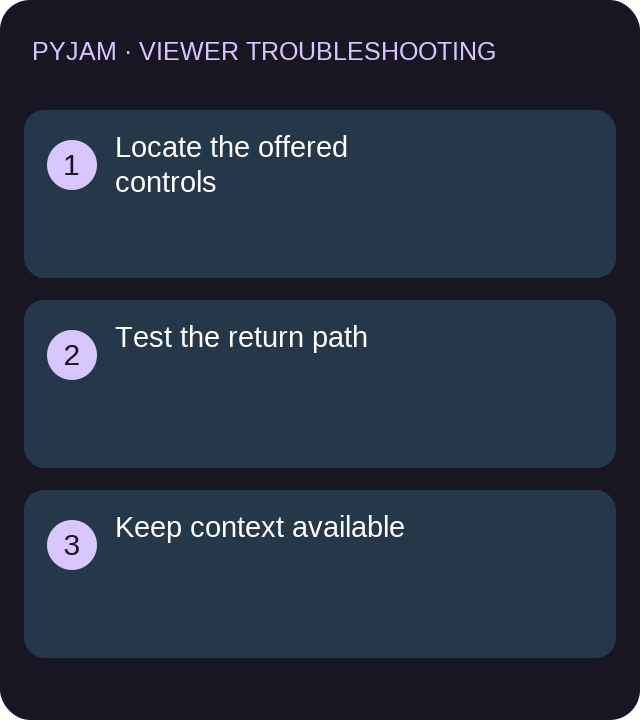
Locate the offered controls
Find the player's full-screen control if present and identify ordinary sound and playback controls first. Browser full screen and a video's own full-screen mode can behave differently. Use choices presented by your device instead of a shortcut from another player. Read a control's visible label when available and keep track of which mode you entered.
Test the return path
Enter during an unimportant moment, then return to the page. Check that the same item stays selected and its title or status remains available. On a phone, observe a deliberate orientation change while stationary. If controls overlap important content, use the normal page view instead of struggling throughout the session. A large picture is helpful only when you can still operate it.
Keep context available
Before expanding, read whether the item is live or recorded and whether the publisher supplies timing information. A larger picture does not fill missing context. For a detailed demonstration, compare whether full screen improves comprehension. Keep the view that lets you understand both the picture and controls. Do not assume an unavailable control means the broadcast itself has failed.
Try the check in Pyjam
Open Pyjam and choose an available public video. Apply the viewing check above to that item, keeping its live or recorded status in mind. Availability and controls should be checked in the current session.
Explore Live Streams in Pyjam