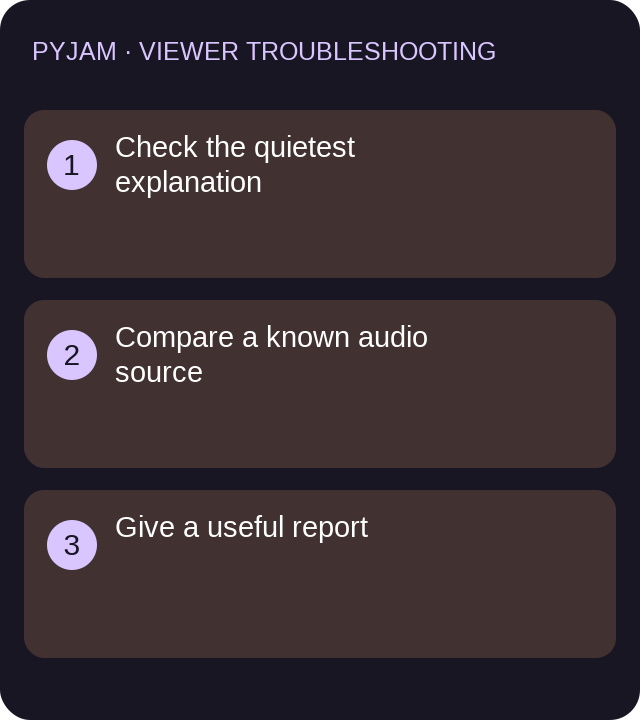
Check the quietest explanation
Inspect the player's mute control and the device's media volume. Confirm where sound is sent, particularly after connecting headphones or another audio device. Some scenes contain little speech or intentionally quiet intervals. Watch long enough to distinguish a quiet moment from persistent missing audio. Do not turn every setting to maximum before identifying which part is silent.
Compare a known audio source
Play another item known to contain speech using the same device and output. If that is also silent, inspect the local audio path before blaming one stream. If it works, return to the original and note which part remains silent. Avoid repeated complaints while the presenter may be demonstrating a deliberately quiet task. Keep the comparison as similar as possible.
Give a useful report
Tell support or the host whether you hear other videos and whether the picture continues moving. Include the link and approximate time. Do not request that a creator expose private device settings on camera. Resolve a local issue before returning; if the stream seems affected, send one concise observation rather than guessing at the cause or promising a particular fix.
Try the check in Pyjam
Open Pyjam and choose an available public video. Apply the viewing check above to that item, keeping its live or recorded status in mind. Availability and controls should be checked in the current session.
Explore Live Streams in Pyjam