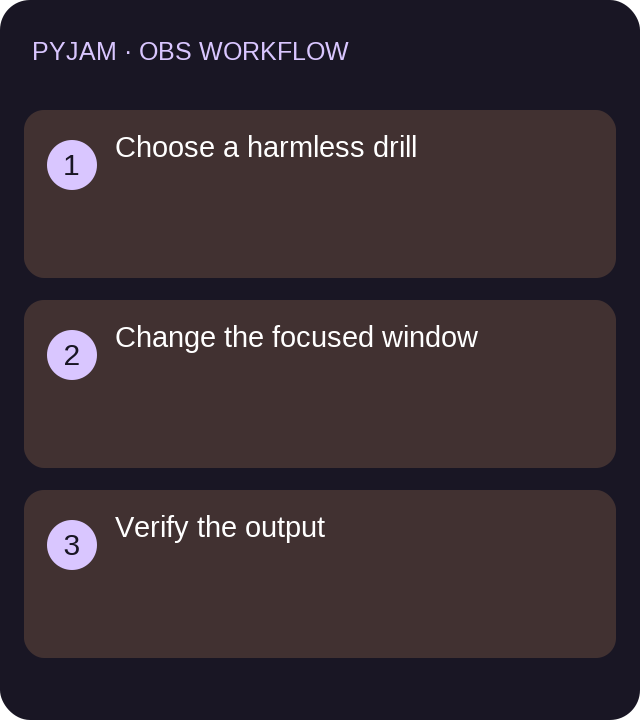
Choose a harmless drill
List the few actions you need, such as changing a scene or muting a source. Use a local rehearsal without an active public transmission. Consult the hotkey controls in your installed OBS and record the chosen combinations. Keep sensitive actions distinct from convenient navigation. Do not test an uncertain broadcast command while relying on an assumption about whether a service is already live.
Change the focused window
Perform the shortcut with OBS focused, then with the demonstrated application focused. Record the intended scene or audio change and any action in the other application. Include typing and the normal keyboard layout. A key combination can interfere with writing, gameplay or a presentation tool. Choose a less ambiguous control method if you cannot reliably distinguish what the shortcut will do during the session.
Verify the output
Inspect the recording or known local status after each action. Rehearse the reverse action, especially unmuting or returning to a main scene. Keep visible controls available as a fallback. Do not add many shortcuts at once; a small set with a practiced recovery is easier to operate. Repeat the focused-window check after changing software, operating system or the person handling production.
Shortcut matrix
Write intended action, key combination, focused application, observed output and unexpected action. Mark a conflict as a failed trial even when OBS also responded. Example acceptance: scene changed and the demonstration application remained untouched. Keep start and stop actions clearly documented, and verify their current status before a real session instead of relying on a remembered keypress alone.
Try the check in Pyjam
Open Pyjam’s preparation route and inspect the available setup before choosing to broadcast. Use the rehearsal above to decide what to check; opening the app alone does not start or confirm a public session.
Prepare a Stream in Pyjam