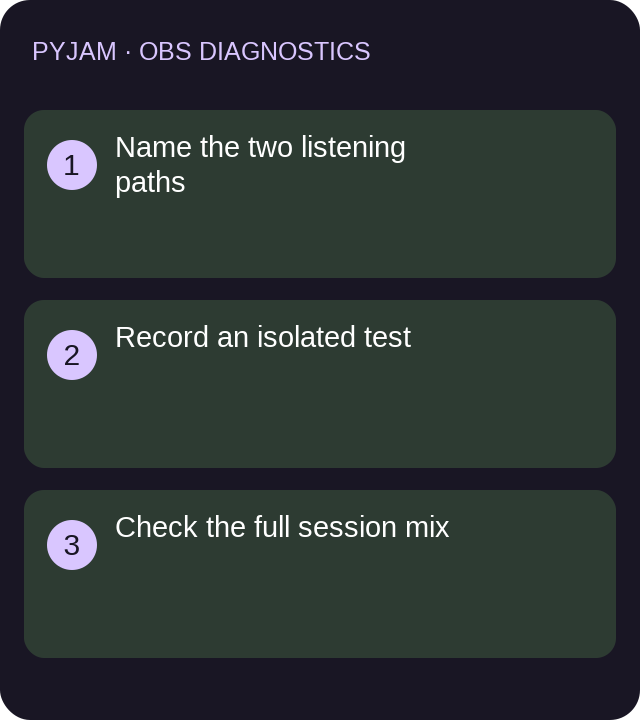
Name the two listening paths
Identify the device you use for monitoring and the output you intend to record. In your OBS version, inspect the relevant audio monitoring and output controls; their presentation can vary. Use a short permitted sound and a spoken label. Note whether the headphones receive it directly from hardware, through system audio or through OBS, because more than one route can make a signal appear duplicated.
Record an isolated test
Keep speakers from feeding the microphone during the rehearsal. Record the named source, then stop and listen to the saved file independently of the live monitoring path. Change one relevant routing choice and repeat if the intended sound is missing. Avoid raising a fader simply because the headphones are quiet without checking which device and path actually determine the recording level.
Check the full session mix
Add the planned sources back and listen for duplicate voice, unintended background sound or a missing demonstration clip. Keep the successful monitor and output choices with the setup notes. If a separate browser application is the destination, inspect its actual selected input rather than assuming that the OBS headphone mix becomes that input. Each receiving route needs its own small acceptance test.
Monitoring comparison card
Use source signal, monitor device, audible monitoring result, recorded result and changed routing control. Example: headphones carry a demonstration sound but the saved file does not; the output path remains unresolved. Record the version and observed controls so someone helping you follows the actual setup rather than an outdated screenshot.
Try the check in Pyjam
Open Pyjam’s preparation route and inspect the available setup before choosing to broadcast. Use the rehearsal above to decide what to check; opening the app alone does not start or confirm a public session.
Prepare a Stream in Pyjam