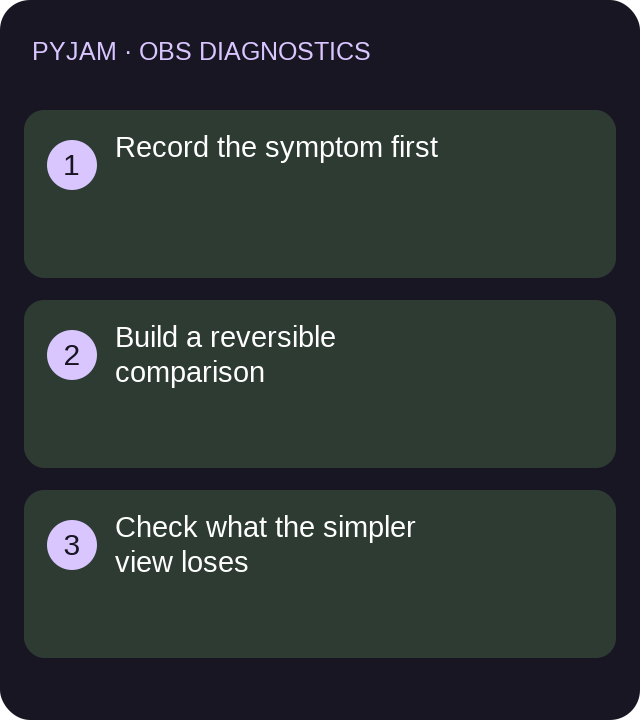
Record the symptom first
Use a representative local rehearsal and inspect the available OBS performance statistics and warnings. Note whether the observation concerns rendering, encoding or transmission. Describe the visible action that becomes choppy and what else the computer is doing. OBS needs graphics resources to compose scenes, so a game appearing smooth on its own does not establish that the composed recording is smooth.
Build a reversible comparison
Keep the working scene intact and prepare a simpler alternative with only the sources needed to explain the action. Remove unnecessary visual complexity from the trial without deleting the original arrangement. Perform the same movement for a comparable interval and inspect the resulting recording and statistics. Change one source or composition choice at a time so an improvement has an identifiable cause within this local test.
Check what the simpler view loses
Ask whether labels, necessary context and the complete demonstration remain visible. A less demanding scene that hides the task is not an acceptable teaching view. Save the chosen arrangement and observed workload with the notes. If the statistics do not support the original diagnosis, investigate the correct stage instead of changing network settings as a response to a rendering-only observation.
Scene-load comparison
Record action, workload, original sources, trial sources, relevant observed statistic and information preserved. Example: removing an animated background improves motion while the required workbench view remains complete. Mark this as a result on the tested computer and scene; it is not a universal performance promise or evidence of received live-video quality.
Try the check in Pyjam
Open Pyjam’s preparation route and inspect the available setup before choosing to broadcast. Use the rehearsal above to decide what to check; opening the app alone does not start or confirm a public session.
Prepare a Stream in Pyjam