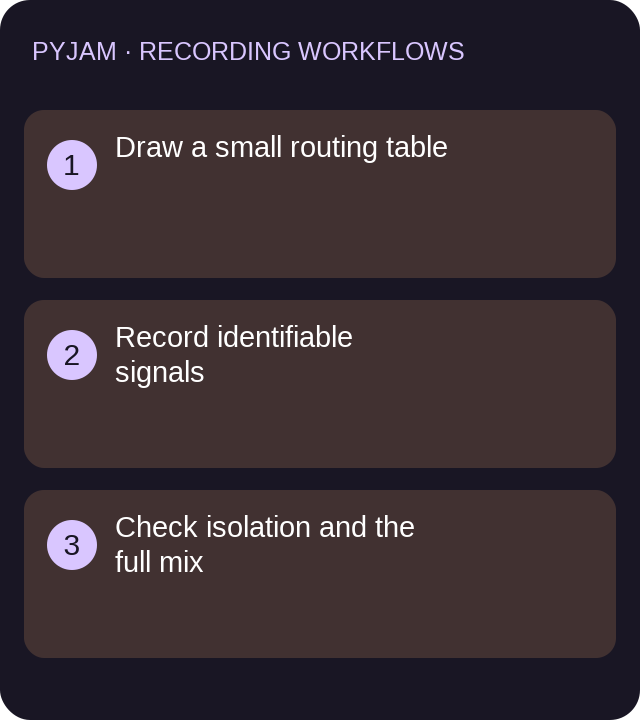
Draw a small routing table
List the microphone, permitted demonstration audio and any other intended source. Give each recording track a purpose, such as a complete review mix or a separately editable voice. OBS Advanced output supports multiple recording tracks, with source assignments in Advanced Audio Properties. Check the enabled recording tracks as well as the source assignments; both parts must agree with the plan.
Record identifiable signals
Say the microphone's name and play a short sound you are entitled to use, one source at a time. Record silence between signals so they are easy to distinguish. Stop and open the file in software that can inspect the intended tracks. An ordinary player may play just one track, so hearing only the complete mix there does not establish that separately recorded material is absent.
Check isolation and the full mix
Inspect each required track and confirm that its named source is present where expected. Then listen to the review mix for missing material or unintended duplication. Keep the route simple enough to explain to the editor. A separate track helps later adjustment, but it cannot restore audio that was never captured or grant permission to reuse another person's material in a published replay.
Track map template
Write source names down the left and track purposes across the top. Mark actual recorded presence after listening, rather than marking only configured checkboxes. Example failure: voice is audible in the review mix but absent from the intended isolated track. Save a corrected sample and route map together before relying on the setup for a longer session.
Try the check in Pyjam
Open Pyjam’s preparation route and inspect the available setup before choosing to broadcast. Use the rehearsal above to decide what to check; opening the app alone does not start or confirm a public session.
Prepare a Stream in Pyjam