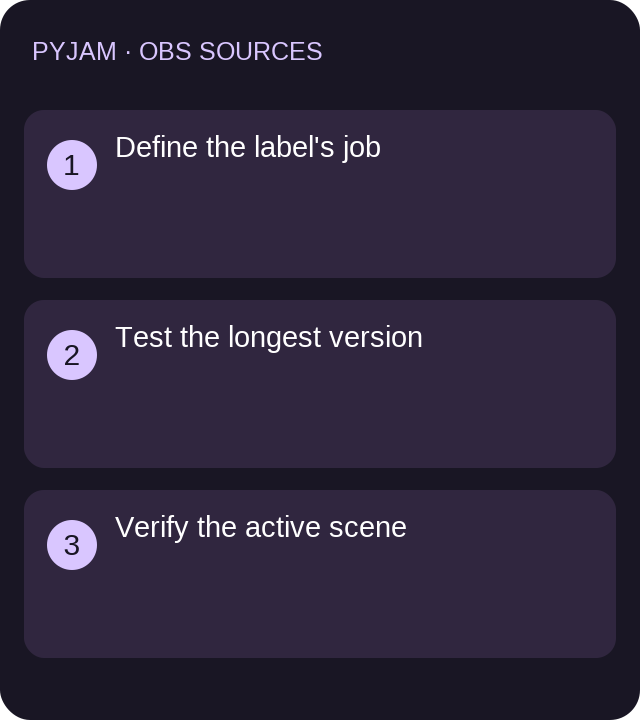
Define the label's job
Choose a short identifier, step name or source reference. OBS text sources add rendered text to a scene, with implementations that differ by operating system. Record the actual source you use. Keep the label separate from a caption promise: displaying one heading does not supply a synchronized account of the session's speech or other meaningful sounds for a viewer.
Test the longest version
Enter a realistic long example rather than an unusually short name. Check wrapping, contrast and position beside the real subject. Record the output and inspect it at a phone-like viewing size. If a line no longer fits, revise the layout or wording deliberately. Shrinking all text until it fits may create an apparently tidy picture that the audience cannot comfortably read.
Verify the active scene
After updating, check the scene the audience will actually see. A similarly named source or a separate label can leave old information on screen. Rehearse changing to the next step and returning. Keep a simple spoken correction ready if an unexpected label appears. Save the accepted text arrangement with enough context to locate the source again without relying only on its color or position.
Label change record
Use old wording, new wording, active scene, longest sample and output observation. Example failure: editor shows the corrected name, composed scene still shows the earlier source. Keep the result tied to the active picture. Recheck after changing fonts, scene size or source relationships, because the same words can wrap differently in a different composition.
Try the check in Pyjam
Open Pyjam’s preparation route and inspect the available setup before choosing to broadcast. Use the rehearsal above to decide what to check; opening the app alone does not start or confirm a public session.
Prepare a Stream in Pyjam