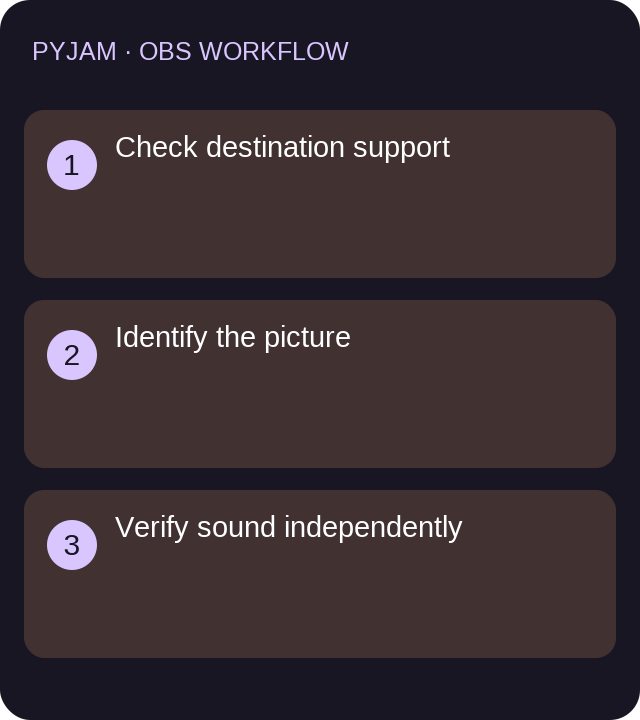
Check destination support
OBS virtual camera supplies a scene to applications that can use a webcam. Inspect the receiving application's available inputs and current requirements. This guide does not establish Pyjam support for OBS virtual camera or encoder ingestion. Keep any destination compatibility question open until its actual controls and a deliberate test support the intended route. Start with a harmless local scene and no public transmission.
Identify the picture
Use a clearly labeled rehearsal frame. Start the intended virtual-camera workflow and select the available camera input in the receiving application. Inspect its preview and make a permitted test recording where appropriate. Do not infer success from an OBS preview alone. If the destination shows the physical camera instead, record that result and correct the selection before evaluating framing or transitions.
Verify sound independently
Choose a known microphone route in the destination and speak a short sentence. Listen to the destination's test result. Avoid assuming a video input automatically carries the composed OBS audio mix. Rehearse stopping the virtual camera and returning to an ordinary setup. Keep the camera selection, audio input and output observation in separate fields so one passing check cannot hide a missing stage.
Destination test card
Write application, selected camera, selected microphone, visible label, recorded phrase and stop result. Mark unsupported or untested routes explicitly. Example: OBS scene visible, intended audio absent; picture-only success. Preserve the working setup and inspect permissions through the normal application controls rather than broadening access merely to make an uncertain configuration appear compatible.
Try the check in Pyjam
Open Pyjam’s preparation route and inspect the available setup before choosing to broadcast. Use the rehearsal above to decide what to check; opening the app alone does not start or confirm a public session.
Prepare a Stream in Pyjam